Projects
Review a prospect list, inspect each result, and open the campaigns connected to it.
Reviewed 2026-08-30
A Project keeps one search, its prospect list, and the campaigns created from that list together. Open a Project to review who Lumnis found, see why each person matched, or return to an active campaign.
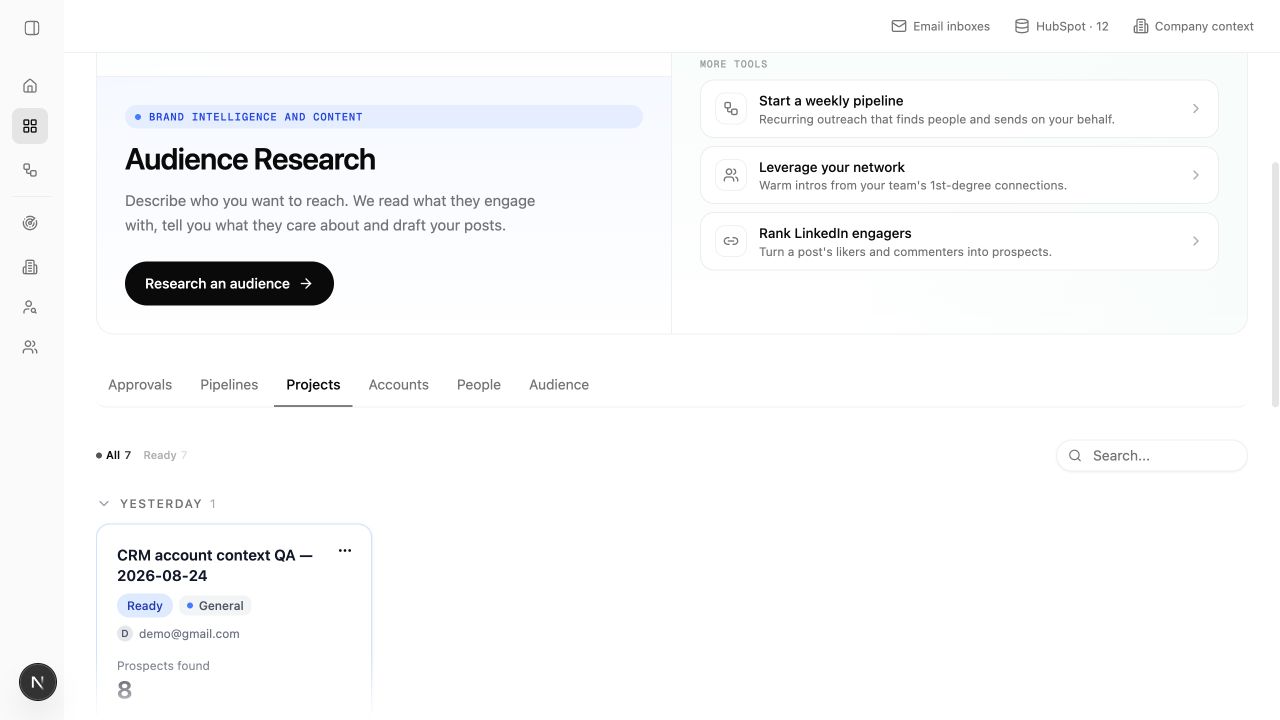
What a Project contains
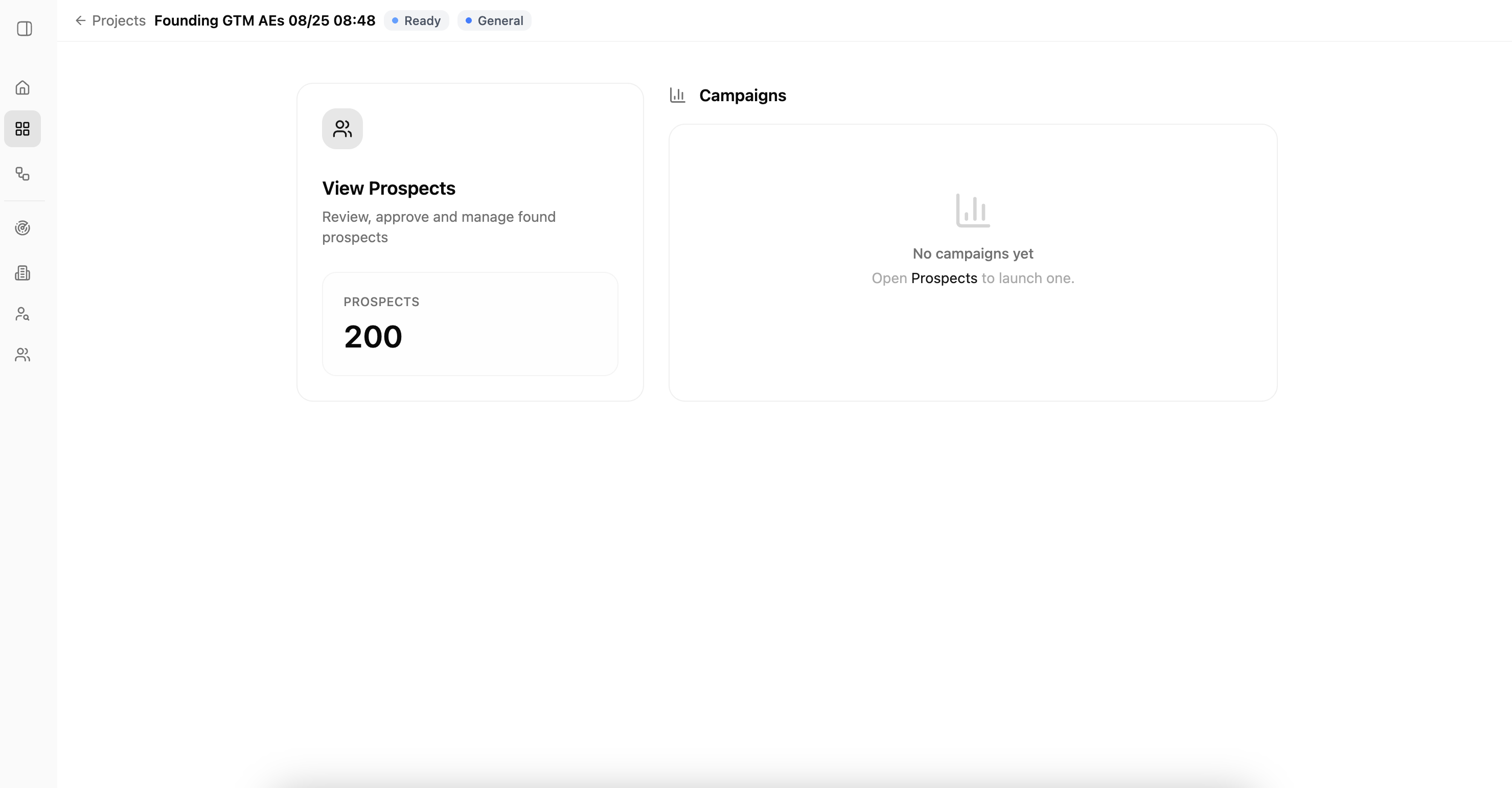
The Project overview gives you two clear ways to continue:
- View Prospects opens the full list so you can review, filter, and manage the people Lumnis found.
- Campaigns shows the campaigns created from that list, including their status and number of prospects.
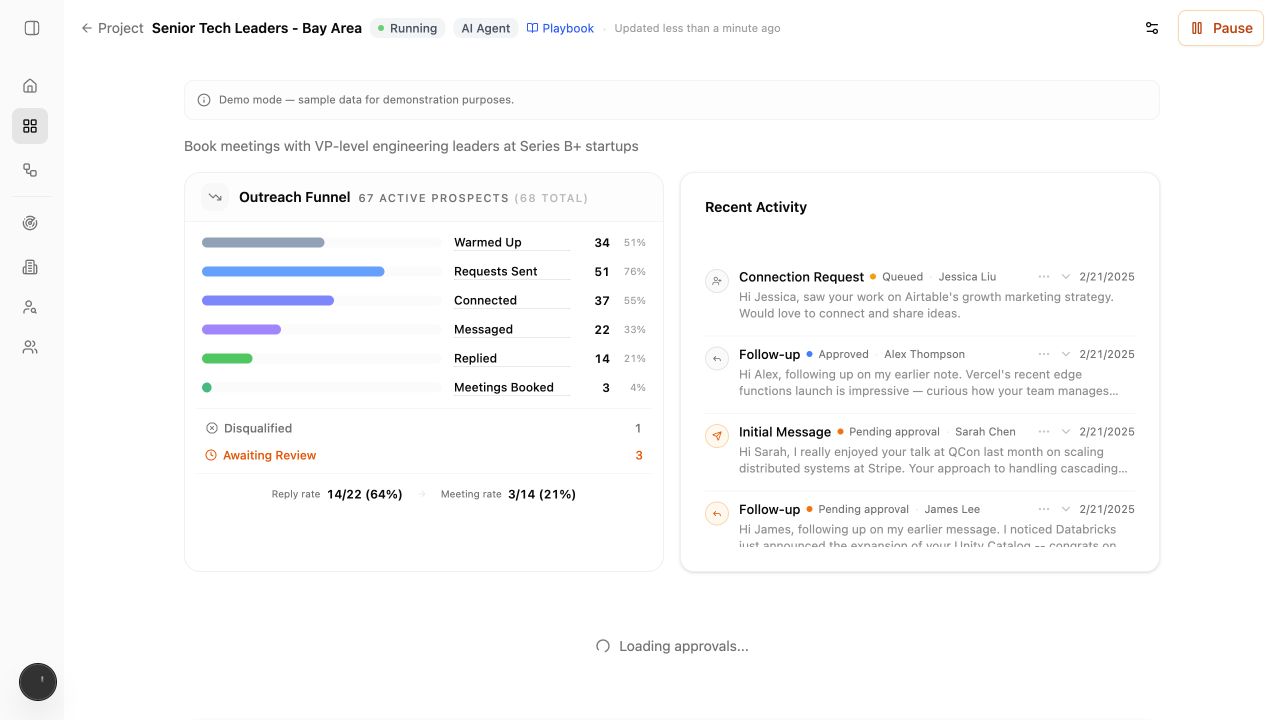
Open a campaign to see its progress and recent work. Select Playbook to review the instructions that guide its messages and replies.
Review a project
Start broad, then inspect the evidence behind the rank.
- Check the project name and Persona to confirm you opened the intended search.
- Scan the fit labels to see how many strong and weak matches you have.
- Filter or sort to create a manageable review set.
- Open a person to review requirements, research, and source activity.
- Keep or remove the person based on whether the evidence supports your goal.
Fit labels
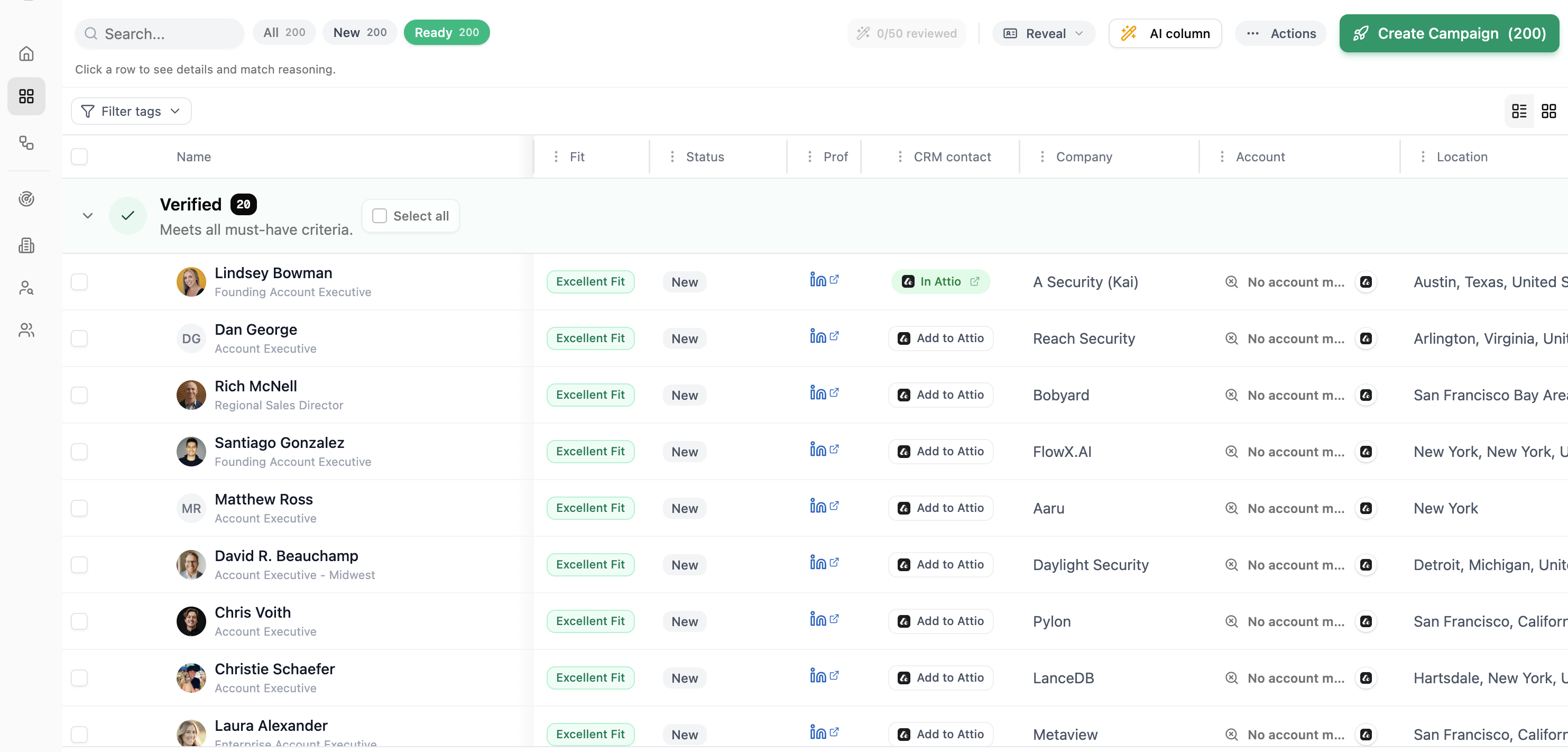
Lumnis presents fit as four word labels:
- Excellent Fit — the best match based on the available evidence.
- Good Fit — a credible match that deserves review.
- Partial Fit — some evidence is useful, but important requirements are weak or incomplete.
- Low Fit — the current evidence does not support prioritizing the person.
The label is a starting point, not a substitute for the detail view. Open the person when a judgment will affect action.
Follow the evidence
Useful evidence should answer three questions:
- What happened?
- When did it happen?
- Why is it relevant to this Persona and search?
Open the linked source instead of relying on a summary alone. Research pages show dates because even a correct fact can become outdated.
Check CRM context
When Attio or HubSpot is connected, the Project table checks two different things:
- CRM contact shows whether the person already has a contact record. You can open that record or add the person to the connected CRM.
- Account shows whether the company has an active deal, is an existing customer, has a marketing record, or has no active deal.
Open the person for the available deal name, pipeline, stage, and linked account details. Review this context before outreach to avoid duplicating work or contacting someone already covered by an active deal. If the match is unclear or unavailable, verify it in the CRM before acting.
Here, account means the person's company in a sales context. The separate person and account checks help distinguish “this individual already exists” from “someone at this company already has a relationship, customer history, or active opportunity with us.” Use both when deciding who should review the result and whether it belongs in new-business work.
Create a campaign from a Project
Open View Prospects and prepare the group you want to contact:
- Review the people and remove anyone who should not receive outreach.
- Check the CRM and In Campaign status to avoid duplicate work.
- Choose Create Campaign in the top-right corner.
- Confirm the number of people shown on the button.
- Follow Set up your first campaign to choose the sender, channels, playbook, approval rules, and launch settings.
Creating a campaign does not remove the prospect list from the Project. Return to the same Project to review the list or open its related campaigns.
See who is already in a campaign
The prospect list keeps campaign work visible. In Campaign means the person is already part of a campaign. Use View Campaign to open that work. Select reviewed people and choose Add to Campaign when you want to add them to a new or existing campaign.
Check the status before adding people so you do not start duplicate outreach.
Next actions
From a Project, you can keep reviewing, add more people, or prepare a campaign from selected results. Read Campaigns for launch steps and an explanation of campaign playbooks. Use Pipelines and Approvals when you want the search to run each week.
A familiar title at a recognizable company can still be the wrong person. The strongest review checks why the person's role fits and which source supports that judgment.